BTemplates.com

Full Width CSS

Copyright © 2017. All rights reserved by Mujahid Khan. Powered by Blogger.

Recent Posts

Contact Form

Name

Email *

Message *

Search This Blog

Tags

Microsoft Word Technology

Videos

Column Left

Column Right

Carousel

Gallery

Feat

Recent Posts

Comments

recentcomments

Featured Posts

Showing posts with label Technology. Show all posts

PUBG Mobile has ban over 4000 players for using hacks


Warning for PUBG players


PUBG Mobile ban


PUBG Mobile warning for players if you use hacks or any other kind of cheating you will be ban for 10 years and your account will be suspanded. PUBG Mobile has already ban over 4000 players for using hacks. This decision has taken by PUBG Mobile officials and this is for fair gameplay.

PUBG Mobile ban


This is what officials said about banning players Dear PUBG MOBILE players, We take this issue very seriously; as such, each account in violation has received a 10-year ban. We would like to remind all players about the importance of fair play, and thank you for keeping PUBG MOBILE fair and fun. If you suspect that a player is cheating or using an unauthorized 3rd party app to dishonestly assist their game play in a match, please use the in-game reporting system to notify us. We investigate all such reports thoroughly and you will be informed of the findings.Thank you for helping us make PUBG MOBILE a better game."


And they published a list of hackers they banned.


PUBG Mobile ban


this is long list you can see by clicking this link PUBG Mobile Ban list.

Top 19 Technology Facts


Top 19 Technology Facts

Top 19 Technology Facts


Learning new information remains a wonderful act. We can learn by studying or We can even learn with a blogpost.

Technology has made an incridible advancement over the past 20 years. Here we are looking 19 interesting fact.


1. Computer programming is currently one of the fastest growing occupations related to technology.
2. The original name of Windows was Interface Manager.

Top 19 Technology Facts

3. Email has been around longer than the World Wide Web.
4. The internet is 10,000+ days old.
5. The 30th of November is known as “Computer Security Day”.

Top 19 Technology Facts


6. The Apple II had a hard drive of only 5 megabytes when it was released.
7. PCs went by the name “Electronic Brains” in the 1950s.
8. The first computer was almost 2.5 meters high and weighed nearly 30,000kg.
9. TIME Magazine named the computer the “Man of the Year” in 1982.
10. Bill Gates’ house was designed used a Mac computer.

Top 19 Technology Facts


11. Currently, the world’s largest hard drive is a 60TB SSD.
12. 51% of internet traffic is “non-human”. 31% is made up from hacking programs, spammers and malicious phishing.
13. The name Google was created accidentally. A spelling error was made by the original founders who were under the impression they were going for Googol.
14. The average computer user blinks 7 times a minute, less than half the normal rate of 20.
15. The QWERTY keyboard was designed to slow you down. If you want to type faster, try the Dvorak Keyboard.

Top 19 Technology Facts


16. HP, Google, Microsoft and Apple have just one thing in common, other than the fact that they are IT companies. They were all started in garages.
17. 28% of IT professionals hide their career from friends and family to get out of giving free tech support.

Top 19 Technology Facts


18. The first computer mouse was invented by Doug Engelbart and it was carved from wood.
19. There are approximately 6000 new viruses released every month.


English to Hindi Typing


How to type in Hindi 

Sometimes we need to type in Hindi. For this, Google provides a great tool, Google Input Tools. From which we can easily type in Hindi without any font or without any problem.

For this we just need to download a tool Google Input Tools. With the help of this tool, you can do not only type in Hindi but also in Arabic, Urdu, Gujarati or Bengali and other many languages.

Click the link below to download Google Input Tools.


How to install Google Input and type in Hindi

Step 1 - First click on the link given above.

Step 2 - Some such window will open. First you have to select language. Since we are typing in Hindi, select "Hindi" for it.

Step 3 - After selecting Hindi.  Select the "I agree to the Google Terms of Service and Privacy Policy" option. Then click on the download button.


English to Hindi Typing


Your Google Input Tools software will start downloading.

This is a 1 MB  software, after downloading it double click to install it. To nstall, you have to turn on your Internet connecton.

Once installed, it will start showing in your taskbar. 

English to Hindi Typing


Click on to select Hindi.

English to Hindi Typing

Step 4 - Now, to start typing, open any of your text editors. Like Microsoft Word. Type anything in it that you want to write in Hindi. And it will be converted to Hindi itself.


Step 5 - Now as you write in the English words, it will be converted to Hindi itself.

For Example :

English to Hindi Typing


Related Posts :


We hope you have liked it. If you have any problem, then please comment on it. We do our best to help you.


Save Webpage as PDF


How to Save Webpage as PDF

When we are reading something on the internet, sometimes the post is so long that we can not read the entire post once. So the best option for this is that we save that page and the best way to save is to save it in pdf. It is very easy to save webpage in pdf.

Follow the options below to save webpage to pdf.

Step 1 - First of all open the post or webpage you want to save. Here I want to save the post The Steve Jobs Speech in Hindi from  Achchikhabar.com (Achchikhabar.com is a very good website for inspirational stories in Hindi) so I opened it in my browzer.


Save Webpage as PDF

You can read this post by clicking here

Step 2 - Now you right click on this page and select the print option. Or you can also call it by using Ctirl + P Shorchut.

Now you will have some such window open. In this, you can click on the Change button in front of the Destination option.

Save Webpage as PDF


Step 3 - A new window will open. You must select a Save as PDF option in your window. This option can be above or below in your window.


Save Webpage as PDF


Step 4 - You will see now where the button of the print was coming, there is now a button to save the button. Here you have to click on this save button and your webpage will be saved in pdf file.


Save Webpage as PDF


Related Posts :


We hope you have liked it. If you have any problem, then please comment on it. We do our best to help you.


Find out Computer Graphics Card


How to know Computer RAM, Graphics Card, Processor and Storage Details


Hello friends,

Today I will tell you how to know the computer's graphic memory, RAM and hard disk, there are many ways to find out all this but I will tell you the easiest way to get the full information about your system.

Step1- First, right-click on the computer icon on your desktop and open the properties.

Step 2- Then click on the Window Experience Index in front of the rating. After this your window will open like this.


Find out Computer Graphics Card


Step 3- Now here you have to click on View and Print Determined Performance and System Information, after which a new window will open which gives you complete information about your system.


Find out Computer Graphics Card


Find out Computer Graphics Card

Here you will get the complete information related to the system.


Related Posts :


We hope you have liked it. If you have any problem, then please comment on it. We do our best to help you.

Download Youtube Videos


How to download Youtube Videos


Hello Friends,

We all need to download videos from youtube. But there are very few people out there who know how to download videos from youtube.

I will tell you an easy and exciting way to download videos from youtube today. For this, you need to download a software that is totally free.

Step 1 - First of all, download this software by clicking on the link given below and after downloading it install it.


After installing it will look something like this.

How to download Youtube Videos

Step 2 - After this you just have to open the youtube video that you have to download and copy the link and paste it to this software. You can also choose video quality in it.


How to download Youtube Videos


Step 3 - After you paste the link and select Video Quality, you just have to click on the download button.


How to download Youtube Videos


And your video will start downloading

Friends, this is a very easy and safe way to download youtube videos as it does not have to buy the software, it is a completely free software.


Related Posts :

If there is still a problem in downloading, let us know in the comments section. We will definitely help you.

Download Videos from YouTube


How to Download Videos from YouTube 


Most of us need to download videos from YouTube. This video can be from any song or movie or anything else, so today I will tell you how to download the video from the IDM. With IDM we can download videos very easily and very quickly.

Step 1 - First, click on the link below to download the IDM and install it.

Download Internet Download Manager

Step 2 - Open your web browser like Google Chrome or Mozilla Firefox. There will be a message IDM integration extension activated, if not visible, then you restart the web browser.

Step 3 - Play your favorite video on youtube which you want to download.

Step 4 - On the side of the video, a download box will appear, click on it, select video quality and click on the start download button. Your video will start downloading.


How to Download Videos from YouTube

This is the easy and fast method to download YouTube video. I hope you enjoy it.

Related Posts :

If there is still a problem in downloading, let us know in the comments section. We will definitely help you.

Download YouTube Videos without any software


How to Download YouTube Videos without any software 


Hello friends, Today we are going to learn how to download YouTube videos without any software. There are usually other software like IDM (Internet Download Software) or YouTube Video downloader to download YouTube videos, but if we download YouTube videos without any software then let's start.

Step 1 - First of all go to YouTube.

Step 2 - Enter the name of video of whom you want to download and open it.


How to Download YouTube Videos without any software


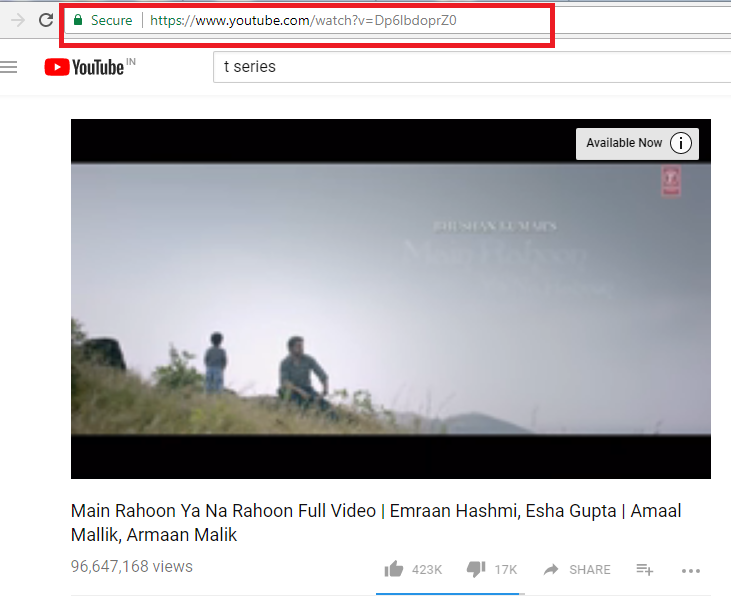
Step 3 - Then go to the URL of video.


How to Download YouTube Videos without any software


Step 4 - Now type “ss” before the YouTube and press enter.


How to Download YouTube Videos without any software


Step 5 - This will let you to the savefrom.net site. Now select the video quality of which you want to download and press the download button.


How to Download YouTube Videos without any software


And your video will start to download. This is the easy and fast trick to download to download YouTube video. I hope you enjoy it. If there is still a problem in downloadg, let us know in the comments section. We will do our best to help you.


Related Posts :

If there is still a problem in downloading, let us know in the comments section. We will definitely help you.

Take Screenshots on Windows


How to take a Screenshot on Windows


We all need to take screenshot sometimes. We all know how to take screenshot in mobile phones but few people knows how to take a screenshot in computer. Today we are going to learn that how to take screenshot in computer. We can use this technique in any window like window xp or 7. It’s very simple and easy.


Step 1 – First of all select the screen of which you want to take screenshot.


                                       I want to take screenshot of my desktop.

How to take a Screenshot on Windows

Step 2 – Then press the PrtSc Button on the top of right corner of your keyboard.


How to take a Screenshot on Windows


Step 3 – Open Microsoft Paint. Go to Start -> All Programs -> Accessories -> Paint


                                               Your paint window will open like this.

How to take a Screenshot on Windows


Step 4 - Press Ctrl + V to paste the screenshot. Now you have taken the screenshot and now you need to save it


How to take a Screenshot on Windows


Step 5 - Now press Ctrl + S to save the screenshot. The pop up window will appear and you can select destination and type name and then click save button.


How to take a Screenshot on Windows


It’s very simple and easy technique to take screenshots.

If you want to take screenshot by any other method then there are several apps you can use them.

1. PrtScr Click here to download
2. WinSnap Click here to download
3. Screenshot Captor Click here to download

If there is still a problem in taking screenshots, let us know in the comments section. We will do our best to help you.

Related Posts :

If there is still a problem in downloading, let us know in the comments section. We will definitely help you.


Recover Deleted Files from SD Card (Data Recovery)


How to Recover Deleted files from Computer or Memory Card


Hello Friends, Today I am going to tell you that how we can recover our deleted files.

When we delete a photo or song, it disappears from the memory card or the computer and empties the space. But it is still maintained in your memory card or computer, which we can recover using the data retrieval software Minutul Power Data Recovery.

First you have to download this. You can download by click on the link below.
Link of Official Website: MiniTool Power Data Recovery Website Link


After Installing and open it you have to register in that.

On the MiniTool window click on Lost Partition Recovery Button then Upper left corner click on Register Button and Enter the key and click on Register.

Now you have registered on MiniTool Power Data Recovery. and we are going to recover our lost data.

Step 1 - Click on Lost Partition Recovery. 


Recover Deleted Files from SD Card


There you will see SD card that you have connected on a computer.

Step 2 - We want to recover our files from SD card so we select SD card  If you want to recover data from computer so you select computer hard disk.


Recover Deleted Files from SD Card


Step 3 - There is a Recover Button on right side click on it.


Recover Deleted Files from SD Card


First this will scan your memory card. 

Recover Deleted Files from SD Card


Then it will scan all deleted files of your memory card. This will take 10-15 minutes.

Recover Deleted Files from SD Card


After Completing the scan this will show you the partitions where your deleted data is. This is showing me 3 partitions. Now I will open partition one by one and recover my deleted files.

Recover Deleted Files from SD Card


Step 4 - Now select partition and click on Show Files Button on the right side.


Recover Deleted Files from SD Card


Here you will find all your deleted files (songs, photos, videos) etc.

Recover Deleted Files from SD Card


Step 5 - Select the file you want to recover and click on the right side of the  Save Files Button.


Recover Deleted Files from SD Card


Step 6 - This will ask you destination where you want to save recover files. Select  destination and clickon OK Button


Recover Deleted Files from SD Card


Now your file has been recoverd enjoy it. If there is still a problem in recovering your data, let us know in the comments section. We will do our best to help you.


Related Posts :

If there is still a problem in downloading, let us know in the comments section. We will definitely help you.